
Guides
Welcome to Squid Esports: Your First Class Guide

We're excited to have you with us! Whether you're joining to become a better teammate, build confidence or develop your competitive skills, this guide will help you get ready for your first online session.
Check your enrolment confirmation
Your confirmation email is your personal reference for class details. Keep it handy and check:
Programme & game
Leadership or Competitive, your chosen game, and the number of sessions you booked.
Class schedule
Your first class date, time, time zone and any scheduled breaks.
Coach & batch
Your assigned coach and confirmed class group (batch), when provided.
Classroom access
Official joining instructions and any additional steps from the Squid team.
Still waiting for confirmation? If you have received a payment or class-forming notice but not an enrolment confirmation, your class may still be forming. Wait for your confirmed start date before attending. Contact us if your details look incorrect.
If your schedule is listed in Bangkok time (GMT+7 / UTC+7), check the equivalent time in your country and add it to your own calendar.
What will you do in class?
Squid classes are live, coach-led group sessions. Gaming is part of the learning experience, but how you communicate, think and work with your team matters too.
Leadership Programme
Take part in team activities, discussions and esports challenges. Learn to communicate clearly, make decisions, solve problems and take responsibility within a team. Progress through Essential, Core and Elite as appropriate.
Four-session blocks: one scheduled break week between blocks.
Competitive Programme
Work with your coach through structured gameplay practice, strategy, feedback and match reviews. Build stronger decision-making, teamwork, focus and composure.
Entry: your coach may assess your starting skill level to guide training.
Check your booked class details to see what applies to you. Your coach will explain the specific activities and goals at the start of class.
Get your setup ready
Complete these checks at least a day before your first session so you have time to fix anything that is not working.
This checklist is a personal preparation aid; it does not submit data or confirm enrolment.
Set up your Discord classroom
Discord is where you'll communicate with your coach and classmates. The Squid server is the community space; a channel is a room inside it. A channel marked with # is a text room, while a speaker icon indicates a voice room.
Important: Discord's minimum age is at least 13 and may be higher depending on your country. Check Discord's age requirements with a parent or guardian. Never enter a false date of birth. If you cannot use Discord or your chosen game because of an age restriction, contact Squid before class to discuss the available options.
 Get Discord ready
Look for the blue-purple icon with the white controller-shaped face when you open Discord.
New to Discord? Download Discord for your device. On a computer, open the downloaded installer. On a phone, install Discord from the App Store or Google Play. If you meet the age requirements for Discord in your country, open Discord, choose Register and follow the prompts using your real date of birth. If you are not eligible, ask your parent or guardian to contact Squid before the class. If Discord sends a verification email, open it and verify your account.
Already have Discord? Open it and sign in to the account you will use in class. On a computer, quit and reopen Discord so any update can finish. On a phone, open Discord in your app store and tap Update if offered.
Join the Squid server
Open the official classroom invitation in your enrolment confirmation email. If it is missing, reply to that email and ask the Squid team for access.
When the invite opens, check that it says Squid Esports Community and accept the invite. Already a member? Open Squid from your server list. If the invite has expired, reply to the person who sent your booking and ask for a fresh link.
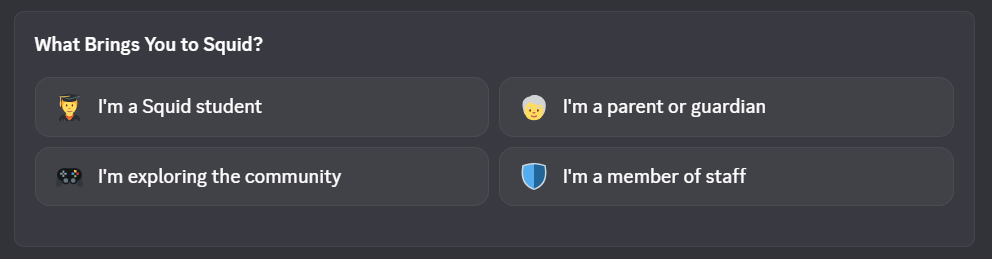
If Discord shows the welcome questions right away, answer them using the pictures below. You can also find them later under Channels & Roles. Read #rules-and-safety once you are inside.
1. Open Channels & Roles
Near the top of the server’s channel list, open Channels & Roles and select Customize. Under What Brings You to Squid?, tap I’m a Squid student. A parent joining on their own account can choose I’m a parent or guardian.
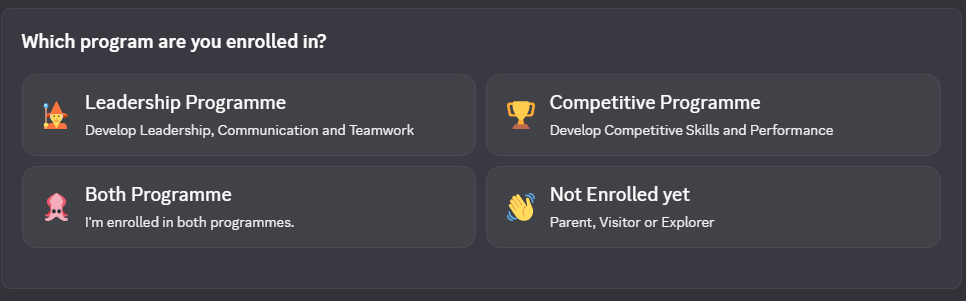
2. Choose your programme
Tap the programme on your booking — Leadership Programme, Competitive Programme or Both Programme. If you haven’t booked a programme, tap Not Enrolled yet.
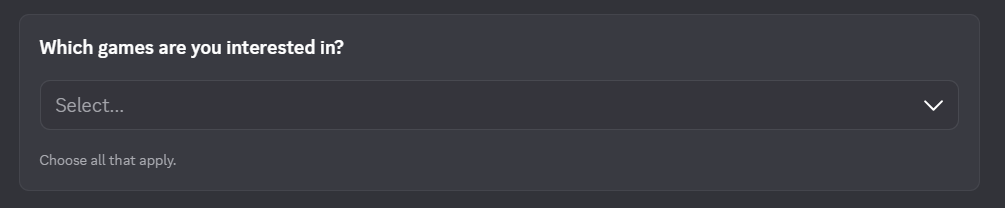
3. Choose your game
Under Which games are you interested in?, tap Select…. Scroll to your game and tick its box. You can choose more than one.
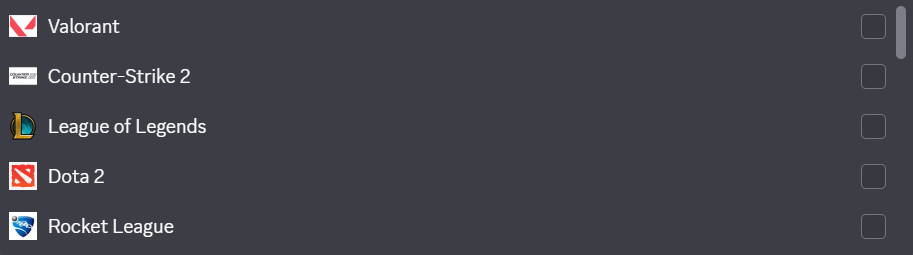
See all 20 game choices
- Valorant
- Counter-Strike 2
- League of Legends
- Dota 2
- Rocket League
- Fortnite
- Mobile Legends: Bang Bang
- Apex Legends
- Overwatch 2
- PUBG: Battlegrounds
- Teamfight Tactics
- EA Sports FC 27
- Rainbow Six Siege X
- Call Of Duty: Warzone
- Call of Duty: Black Ops 7
- Crossfire
- PUBG: Mobile
- Honor Of Kings
- Arena of Valor
- Free Fire
4. Meet your coach in class
Your batch is the group you are booked to learn with. Ten minutes before your booked time, open Squid and find your confirmed batch in the channel list. For example, if Squid assigned you to VALORANT Competitive · Batch 01, open that category and tap Join Class · Batch 01, the room with the speaker icon. If Discord asks to use your microphone, allow it. Say hello to your coach.
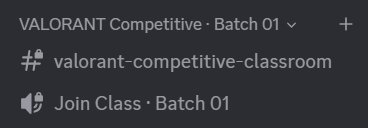
Can’t see your classroom? Open #server-guide, follow its #membership-help link and type “I can’t see my classroom.” Your nickname is enough. Keep your full name, school and contact details private.
Screenshots show an example classroom and the current joining flow supplied by our team. Your assigned game, programme and batch may differ.
It's time for your first session
10 minutes before: Open Discord, join your assigned voice classroom, launch your booked game if needed and test your devices.
Say hello: Introduce yourself using the name or nickname agreed with your coach. You don't need to share your full name, school or personal contact details with classmates.
Get started: Listen to your coach's instructions, ask questions if you're unsure and join the activities at your own level.
Learn together: Communicate respectfully, give teammates time to speak and focus on improving rather than winning every match.
Wrap up: Take note of your coach's feedback or any suggested practice. Check your next scheduled class before leaving.
New to a group class? It's fine to feel a little nervous. You don't have to be the best player in the room. Come ready to listen, participate and learn.
Our classroom rules
- Be respectful to coaches and classmates; no bullying, harassment, discrimination, cheating or deliberately disruptive behaviour.
- Follow the coach's instructions and use the appropriate class channels. Don't interrupt teammates or spam the chat.
- Never share passwords, verification codes, payment details, home address, school or private contact information in Discord or in a game.
- Keep class communications in designated Squid channels. Don't accept unexpected friend requests, links, downloads or private messages from people you do not know.
- Do not record or share another student's image, voice or personal information without appropriate permission.
- If something makes you uncomfortable, stop the interaction, tell a trusted adult and contact the Squid team using the official enrolment email. You may also block or report inappropriate Discord interactions.
Read #rules-and-safety in the Squid server before joining your class. Take breaks as appropriate, stay hydrated and balance gaming with sleep, school and other activities.
Attendance, missed classes and rescheduling
Attend your confirmed sessions on time and tell us as early as possible if you cannot make a class. Reply to your enrolment email with your programme, batch and affected date.
If you miss a class
For an ordinary absence from a group class that goes ahead, we provide a short learning recap. There is no refund, replacement or make-up class.
If a learner will miss a scheduled class because of illness, the parent or guardian should email Squid as early as possible before the scheduled class. Once Squid acknowledges the notice, we will arrange a 30-minute make-up class.
In an emergency where advance notice was not possible, contact Customer Support; management will review the circumstances and decide on a case-by-case basis.
Eligible new learners joining in week two follow the separate late-join catch-up arrangements.
If your coach cancels
If a confirmed class is cancelled by the coach, Squid will arrange a full replacement session and share the new details.
Check the schedule for breaks and changes. Any trial or gift card-specific booking conditions will be shown in your enrolment confirmation. Do not join a different batch without approval.
Supporting your child's learning
Our aim is to make esports a structured learning experience, with opportunities to practise teamwork, communication, logical thinking and decision-making. These are skills students can apply beyond gaming, including school projects and everyday life.
Before the first class
- Review the programme, schedule, coach and the game's age rating together. Confirm that your child meets platform and game age requirements.
- Help test the webcam, microphone, game account and connection in advance.
- Review privacy settings and teach your child to keep personal information private. Discord offers an optional Family Center for eligible teen accounts.
- Read the class rules and ask us in advance about any learning needs, accessibility accommodations, recording arrangements or consent requirements.
After each class
Ask what your child learned, what challenged them and how they worked with the group. Improvement is not only measured by game rank. Participation, feedback and constructive behaviour also matter.
Questions or concerns
Reply to your enrolment confirmation to ask about learning progress, attendance or issues during class. If you have a specific safeguarding concern, describe it privately to the Squid team rather than sharing information in a public channel. Avoid sending sensitive personal details unless the team confirms an appropriate secure process.
Contact Squid for the applicable consent, privacy, recording, refund and safeguarding policies before participating if you have any questions.
Frequently asked questions
Do I have to be an experienced gamer?
The Leadership Programme is focused on learning through team-based activities. Competitive classes are designed for structured game improvement and may include an assessment. Ask Squid about the right class for your starting level.
Do I need to install my game before class?
Yes. Install your booked game through its official launcher or store, finish updates and make sure you can sign in before the session.
Can I join Discord on my phone?
Discord can be used on an eligible phone, but you still need the device required to run your booked game and a working webcam and microphone. A computer may be more practical for following coaching and playing simultaneously.
I can't find my classroom. What should I do?
Check your assigned batch and the role selections in the illustrated guide above. If you still cannot find it, follow the #membership-help instructions or reply to your confirmation email.
Can I change my game, class or time?
Contact Squid before attending. Changes depend on the available classes and your booking conditions.
What if I redeemed a gift card or booked a single session?
Follow the specific programme, date and session entitlement in your enrolment confirmation. You will start at Session 1 of the assigned block. Contact Squid if you wish to continue or change your booking.
What if my internet or microphone stops working?
Reconnect or restart the affected app, check your device settings and let your coach know through an official class channel if possible. If you cannot rejoin, contact Squid via your enrolment email.
Need a hand before your first class?
Reply directly to your enrolment confirmation email. Tell us your programme, booked game, class date, and what you need help with. Please don't share passwords or payment credentials.
We look forward to meeting you in class!
The Squid Esports Team
Back to your preparation checklist ↑